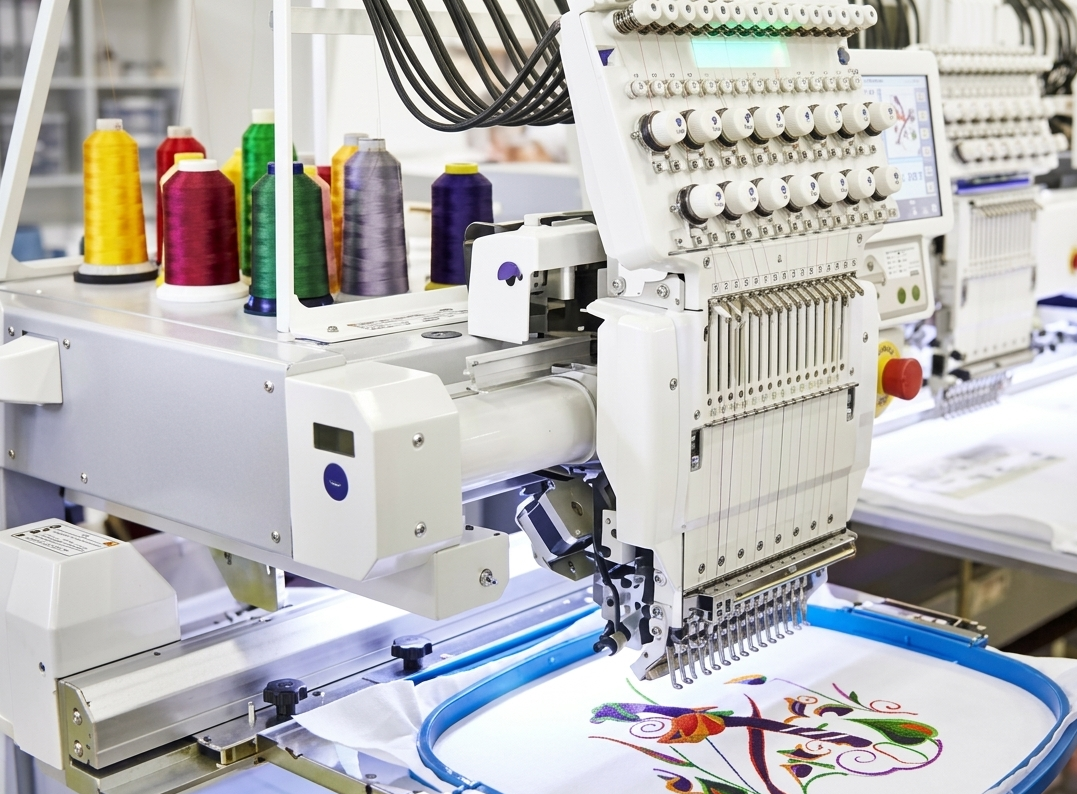
Converting design files for embroidery machines can feel confusing, especially when working with vector formats like SVG. Many designers create logos and artwork in SVG format, but embroidery machines require stitch-based files such as PES. That’s why understanding how to convert SVG to PES properly is essential for clean, professional embroidery results.
If you’re searching for ways to convert SVG to PES embroidery file format without losing quality, this guide will walk you through the process, tools, challenges, and best practices — while also comparing common online approaches used by embroidery conversion services.
What Is an SVG File?
SVG (Scalable Vector Graphics) is a vector-based design format commonly used for logos, icons, and illustrations. It is resolution-independent, meaning it can be resized without losing clarity. Designers prefer SVG because it maintains sharp edges and clean lines.
However, embroidery machines do not understand vector paths. They require stitch instructions — which is where PES files come in.
What Is a PES Embroidery File?
PES is a stitch-based embroidery file format used mainly by Brother and Babylock embroidery machines. Unlike SVG, PES files contain detailed stitch data such as:
- Stitch type (satin, fill, run stitch)
- Stitch direction
- Thread color sequence
- Stitch density
- Machine path instructions
Simply renaming an SVG file to PES will not work. The file must be properly digitized.
Can You Directly Convert SVG to PES?
Technically, there is no “direct” automatic conversion that guarantees perfect results. While some online tools claim instant conversion, embroidery digitizing requires interpretation of design elements.
When you convert SVG to PES embroidery file, the design must be:
- Analyzed for stitch types
- Adjusted for fabric compatibility
- Optimized for thread density
- Structured for proper machine sequencing
This process is called embroidery digitizing — not just file conversion.
Manual Digitizing vs Automated Conversion
Many websites provide instant upload-and-convert services. These automated systems can work for very simple logos but often struggle with:
- Fine details
- Thin lines
- Gradients
- Small text
- Overlapping shapes
Manual digitizing, on the other hand, allows control over stitch angle, density, pull compensation, and fabric behavior. This produces cleaner stitching and fewer thread breaks.
Compared to typical automated SVG conversion services in the market, professional digitizing ensures:
- Better edge clarity
- Reduced puckering
- Balanced stitch density
- Cleaner trims and jumps
If you are running commercial embroidery or selling branded apparel, quality digitizing makes a noticeable difference.

Step-by-Step: How to Convert SVG to PES Properly
1. Prepare Your SVG Design
- Remove unnecessary layers
- Convert fonts to outlines
- Simplify complex gradients
- Ensure shapes are clean and closed
2. Import into Embroidery Software
Professional embroidery software such as Wilcom, Hatch, or Brother PE-Design is used to import SVG files.
3. Assign Stitch Types
- Satin stitch for borders and text
- Fill stitch for large areas
- Run stitch for fine details
4. Adjust Stitch Settings
- Density settings
- Stitch angle
- Underlay type
- Pull compensation
5. Preview & Test
Simulate stitching to check thread path and sequencing.
6. Export as PES
Once optimized, export the design in PES format compatible with your embroidery machine.
Common Problems During SVG to PES Conversion
If the file is not digitized correctly, you may experience:
- Thread breaks
- Misaligned stitching
- Gaps between stitches
- Fabric puckering
- Excessive trims
These issues usually happen when designs are auto-converted without stitch optimization.
Why Quality Matters in Embroidery Files
A clean vector design does not automatically mean a clean embroidery result. Embroidery involves fabric tension, thread thickness, and machine mechanics. Proper digitizing ensures:
- Smooth curves
- Clean lettering
- Balanced stitch coverage
- Professional finish
Businesses that invest in proper SVG to PES digitizing reduce production errors and material waste.
FAQs
1. Can I convert SVG to PES for free?
Some free tools exist, but they are limited and often do not optimize stitch quality. For professional results, digitizing software or expert services are recommended.
2. Is converting SVG to PES the same as digitizing?
No. Conversion is just format change, while digitizing involves creating stitch instructions suitable for embroidery machines.
3. Why does my converted PES file look distorted?
This usually happens because stitch density, underlay, or pull compensation was not adjusted during digitizing.
4. Which machines use PES files?
Brother and Babylock embroidery machines primarily use the PES embroidery file format.
5. How long does it take to convert SVG to PES embroidery file?
Simple designs may take 20–30 minutes, while complex logos can take several hours depending on detail.
Final Thoughts
Understanding how to properly convert SVG to PES is crucial if you want high-quality embroidery results. While automated tools offer quick solutions, they often lack the precision required for professional output. Proper digitizing ensures your design stitches cleanly, maintains its original look, and performs well on fabric.
If you’re working with logos or detailed artwork, investing time in professional digitizing or learning proper embroidery software techniques will always produce better results than instant conversion methods.